How to Set Up Automatic Email Forwarding in Gmail
Set up automatic email forwarding in Gmail to ensure your messages reach another account effortlessly.
Step 1: Open Gmail settings Click the gear icon, then choose See all settings.
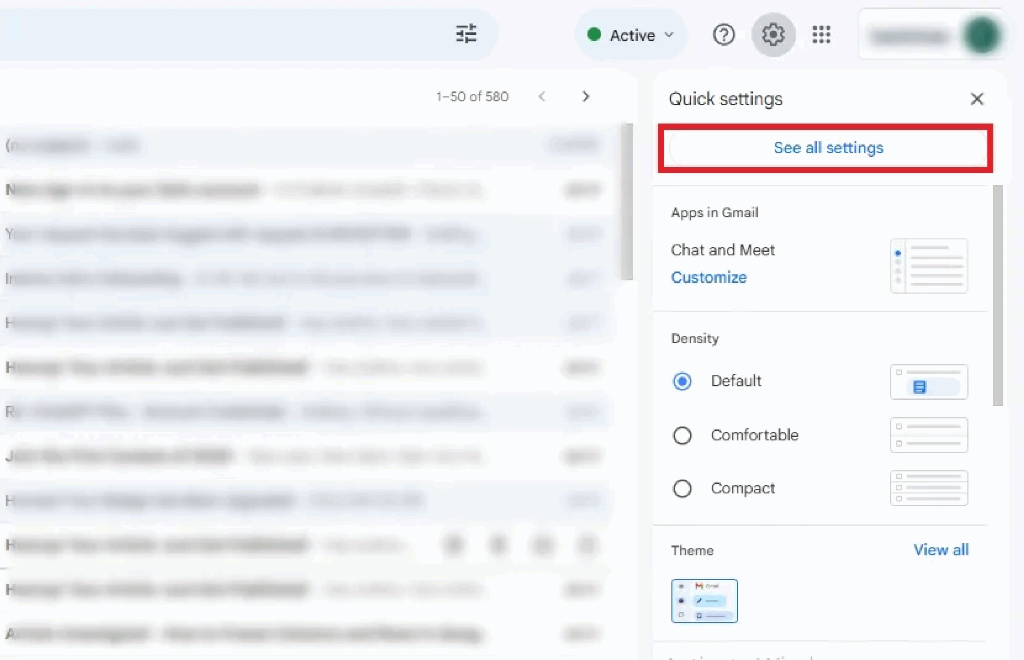
Open Gmail settings
Step 2: Add a forwarding address Go to the Forwarding and POP/IMAP tab, click Add a forwarding address, and enter the recipient's email.
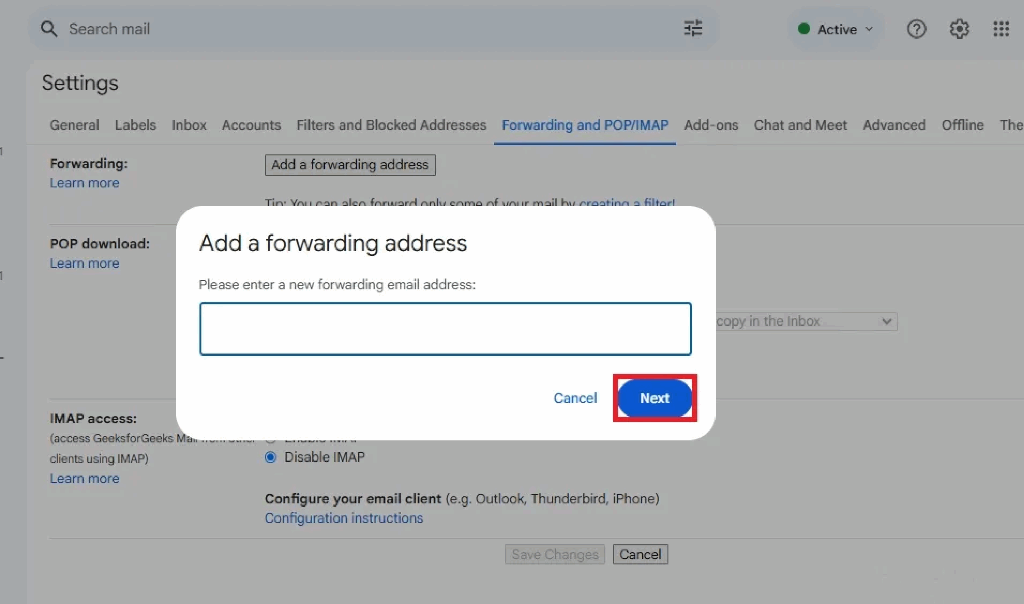
Add a forwarding address
Step 3: Confirm and enable Follow the email confirmation link sent to the recipient and enable forwarding in Gmail settings.
Pro Tips for Gmail Forwarding: Always test automatic forwarding by sending a sample email to ensure it works correctly. Use filters to forward only high-priority messages and avoid clutter. Keep an eye on your Google storage, as large attachments can fill it up quickly.